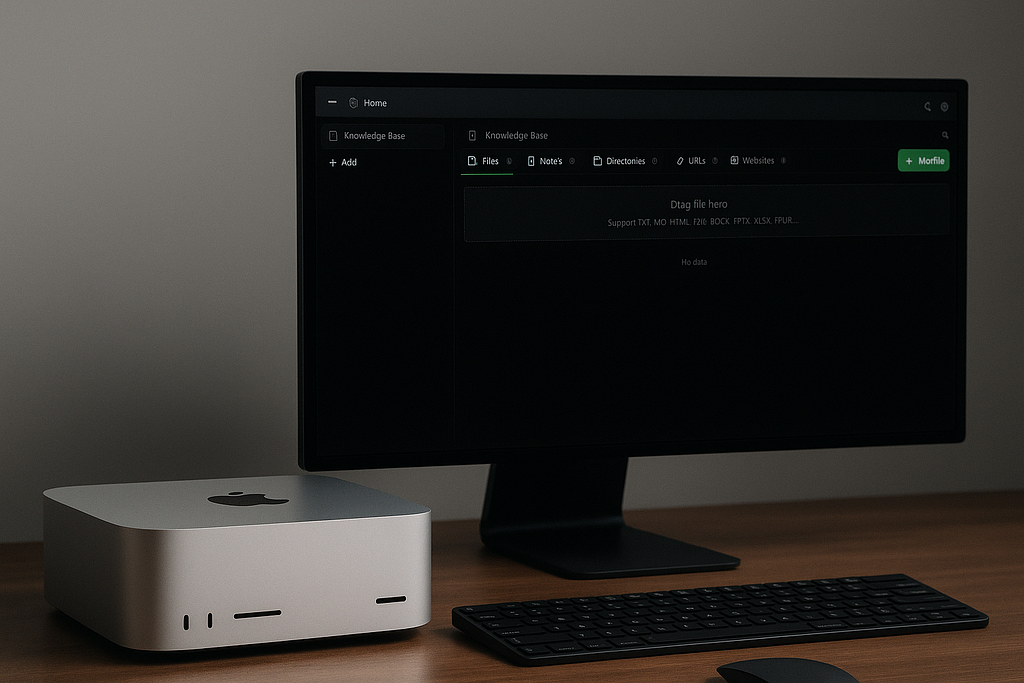
I recently upgraded to a Mac Studio (M4 Max) — 16-core CPU, 40-core GPU, 126GB unified memory, and 2TB of storage. What a performance monster! 🚀 Benefit by the huge unified memory, I wanted to turn this machine into something more powerful: a fully offline AI assistant that can run local LLMs, experiment with prompts, and reference my own documents.
In this article, I’ll walk you through how I set up:
- Ollama to serve LLMs locally
- Cherry Studio for interactive prompt testing and knowledge base setup
- RAGFlow to build a robust, retrievable AI system powered by my own content
🧠 Why Local LLMs?
Running an LLM stack locally gives you:
- 🔐 Privacy: No internet dependency, no cloud APIs
- 🚀 Speed: Instant responses using Apple Silicon’s hardware acceleration
- ⚙️ Customizability: Your models, your data, your rules
- 🌐 Network access: Serve LLMs across your LAN or to browser apps
Let’s break it all down.
🛠 Step 1: Running Ollama on Mac Studio
Ollama is the fastest way to get started with local LLMs.
🔧 Install and Launch
brew install ollama
ollama run llama3
That’s all you need to run a base model locally. But we’re just getting started.
🌐 Enable Network Access
If you want other devices or services to connect to Ollama, you need to expose the API.
✅ Using the GUI
Ollama now lets you toggle LAN access in the settings panel:
⚙️ Go to Settings → Enable “Expose Ollama to the network”
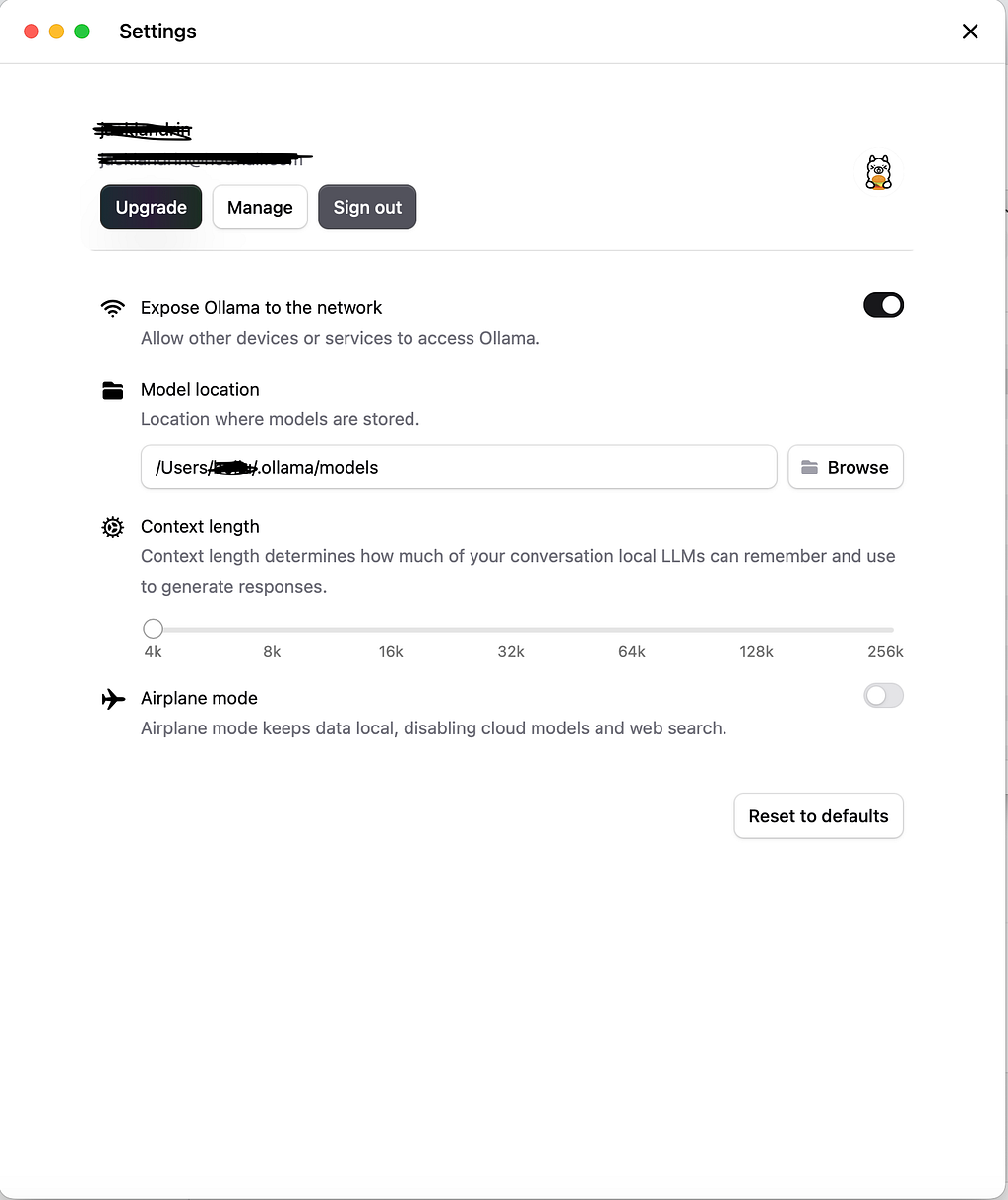
This lets you connect to the Ollama API from other devices, RAG pipelines, or browser-based apps.
🔓 Enable CORS (Cross-Origin Requests)
If you’re working with browser-based tools like Cherry Studio or RAGFlow:
launchctl setenv OLLAMA_ORIGINS "*"
This enables cross-origin access so frontends can talk to your locally hosted Ollama backend.
🤖 Try These Open Source LLMs
Here are a few high-performing models I’ve tested on the M4 Max:

Launch any with:
ollama run qwen3-coder
Pair them with Cherry Studio to compare outputs side-by-side.
🎨 Step 2: Cherry Studio for Prompting + Knowledge Base
Cherry Studio is more than a playground — it includes apps for building full workflows, including code generation, translations, and a visual knowledge base manager.
📚 Creating a Knowledge Base in Cherry Studio
As shown in your screenshots:
- Go to the Knowledge Base app
- Create a base (knowledge base1, for example)
- Add content:
- 📄 Files (TXT, MD, PDF, DOCX, etc.)
- 🔗 URLs and websites
- 📝 Notes and directories
4. Choose an embedding model (e.g., mxbai-embed-large)


This is visually intuitive, no setup needed, and great for quick experiments or smaller knowledge bases.
🔁 Cherry Studio vs. RAGFlow: Knowledge Base Comparison
Here’s how they stack up:
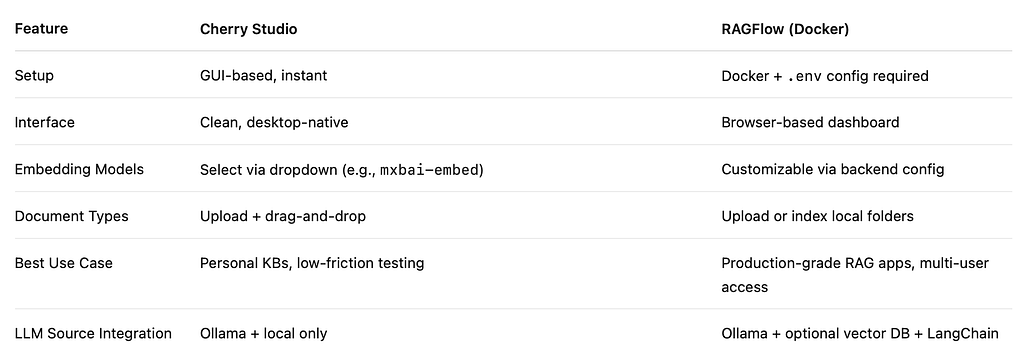
If you want something quick and visual, Cherry Studio wins.
If you need advanced RAG pipelines and expansion, go with RAGFlow.
🧠 What’s a Knowledge Base?
A knowledge base is a curated collection of your documents — technical notes, blog drafts, PDFs, emails, even Notion exports.
RAG tools split these into chunks and turn them into embeddings — numeric representations of meaning.
📌 What’s an Embedding Model?
An embedding model converts chunks of your content into vector representations. These vectors are then used to search for semantically similar results when you ask a question.
Popular choices:
- mxbai-embed-large
- e5-large
- bge-small-en
- nomic-embed-text
You can select these easily in Cherry Studio or customize them in RAGFlow.
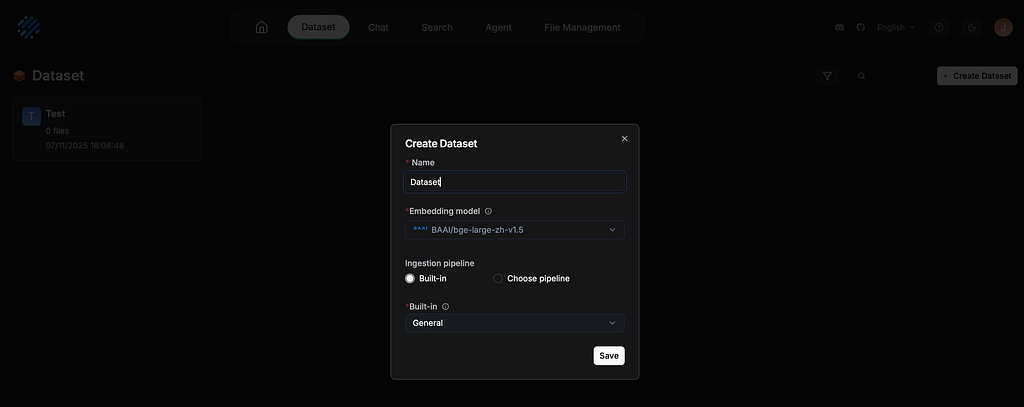
🐳 Step 3: Deploy RAGFlow via Docker
RAGFlow gives you a local, production-ready retrieval system. It’s built with LangChain and supports custom pipelines.
🏗️ Quick Setup
git clone https://github.com/ragflow/ragflow.git
cd ragflow
Edit your .env file:
OLLAMA_BASE_URL=http://host.docker.internal:11434
Launch it:
docker compose up --build
Now visit http://127.0.0.1 (the local address in terms of what you set up) and:
- Setup Ollama’s models in Model Providers
- Upload documents (PDFs, TXT, HTML, DOCX, etc.)
- Use Ollama for generation
- Add search capabilities across your files
🧩 Full Local Stack Summary
Here’s what my system looks like now — all running on a single Mac Studio:
Mac Studio (M4 Max)
│
├── Ollama (local LLM server) – LAN + CORS enabled
│     └── Models: qwen3, qwen3-coder, gpt-oss
│
├── Cherry Studio (prompting + knowledge base)
│     └── GUI KB builder, embedding model picker
│
└── RAGFlow (Docker)
      └── Structured RAG pipeline, vector search, docs indexing
✅ Final Thoughts
With a Mac Studio like this, there’s no excuse to stay cloud-dependent. I now have:
- 🔐 Private local LLMs
- 🧠 A smart knowledge base from my own files
- 🧪 Tools for prompt testing and evaluation
- 🌐 Network access to serve apps and teammates
And all of it runs offline, leveraging my machine’s power instead of external APIs.
Comments